Zotero is a free program that helps you collect bibliographic references on the web. This guide covers the main features to help you get started with the tool.
Zotero is a useful tool for storing, managing, and citing bibliographic references like books and articles, as well as all the sources you need for your bibliography. With a free Zotero account, you can store up to 300 MB of data on your personal profile, including citations and PDF documents.
You can download the software to your desktop and integrate it with a browser extension to save articles and citations from the web:
- Go to the Zotero download page
- Install Zotero (Windows - macOS - 32-bit Linux - 64-bit Linux)
- Install Zotero Connector to save from your browser (Chrome / Firefox)
For more information on operating systems and new program versions, visit the Zotero installation instructions page.
Zotero is also accessible online: create an account and sync it with the Zotero library on your personal computer. This feature will let you access the library's content from any computer.
The program lets you save results from library and non-library resources, includes over 1,700 citation styles, and is completely free.
For more information, check out the guide available on the provider's website (quick start guide).
YouTube Tutorial:
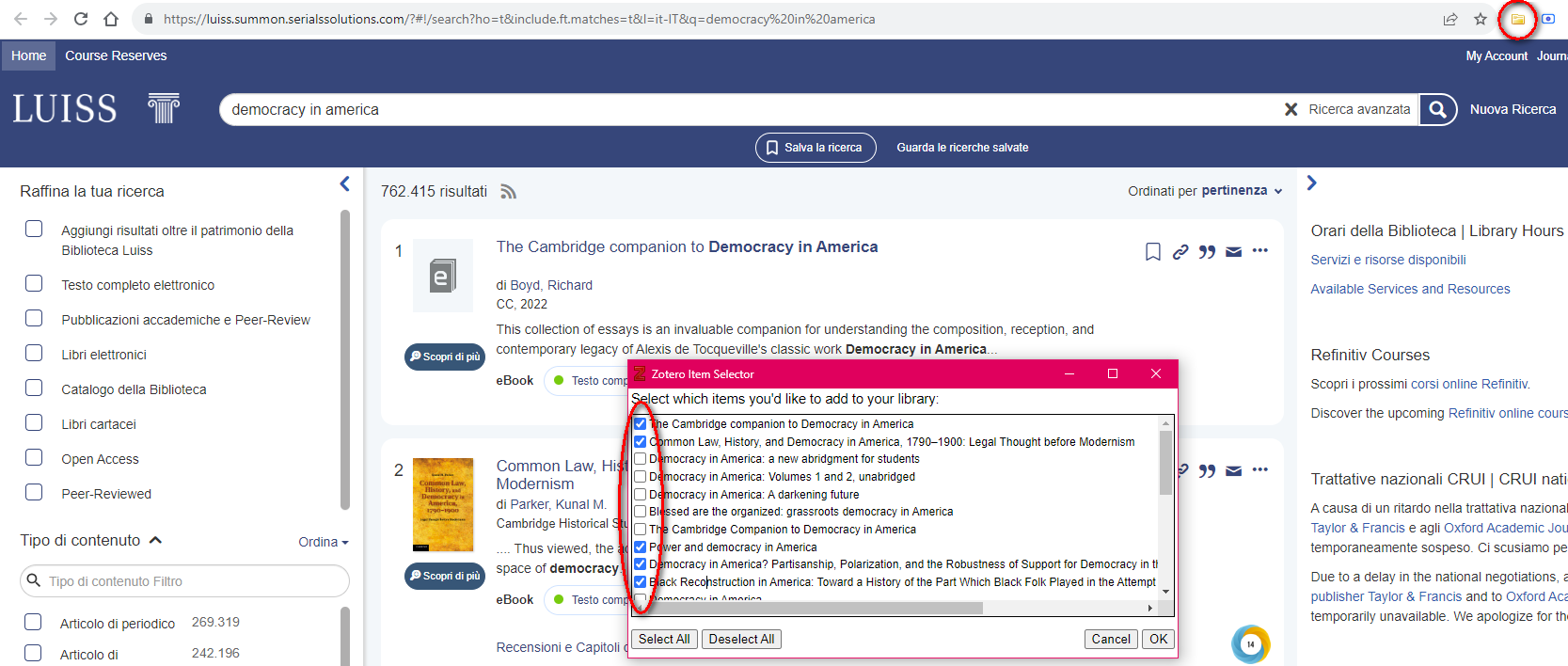
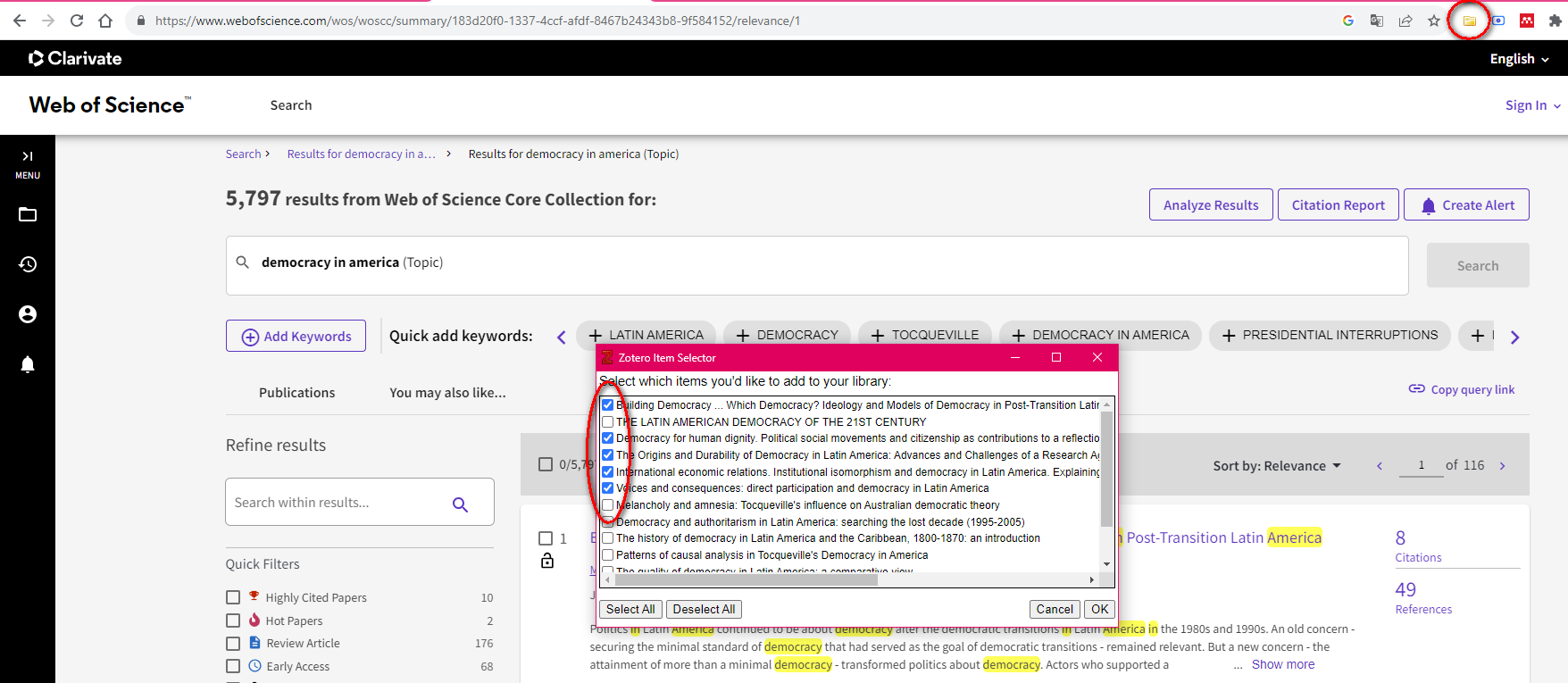
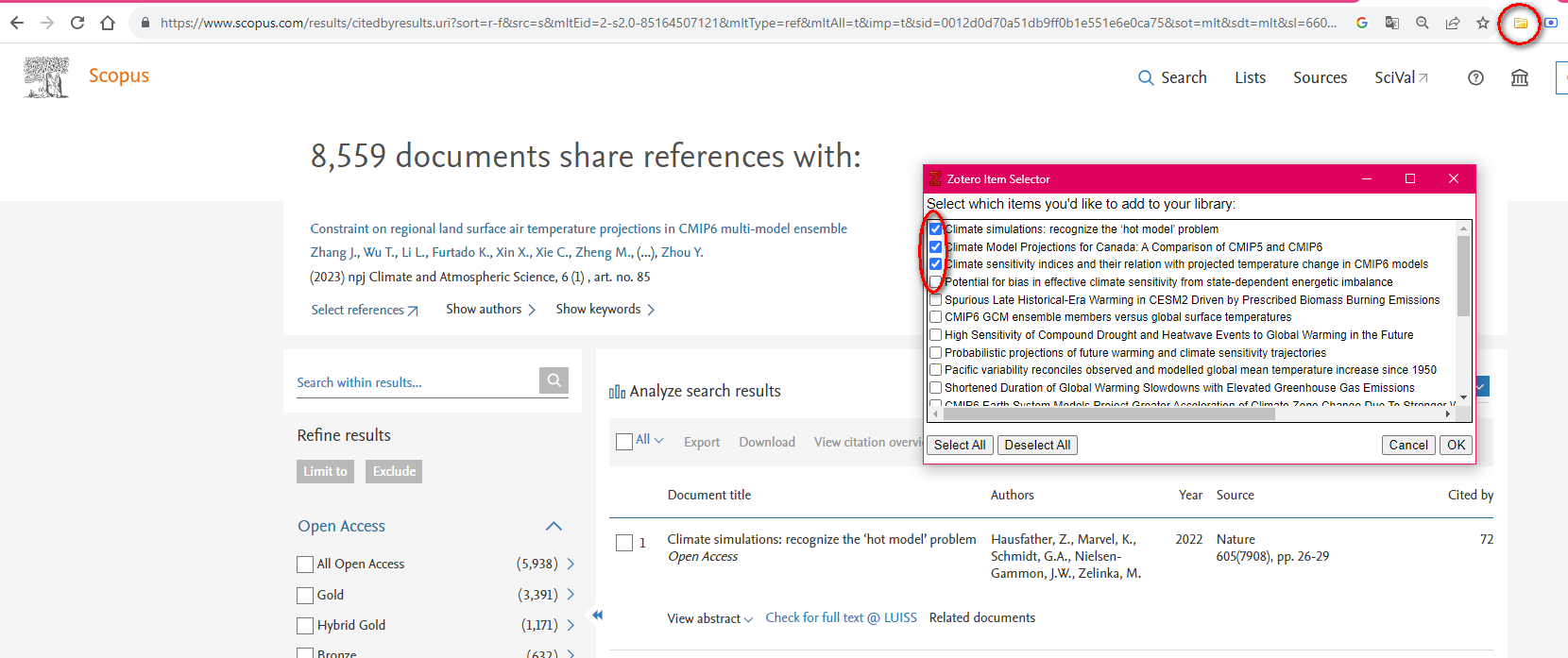
Zotero senses when you are looking at a source on the web (e.g. an article in a subscription database like Web of Science or Scopus, a book on Luiss Library Discovery or other catalogs, other titles in WorldCat or Amazon etc.) and allows you to add any online source to your library with one click.
If you come across interesting results, simply click the icon to automatically import the citation or the document as a PDF.
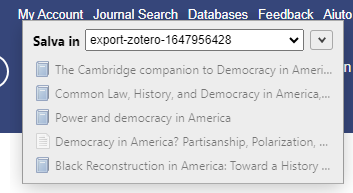
Click on the folder or the icon at the top right and select your results from the list:
Luiss Library Discovery
Web of Science
Scopus
Google
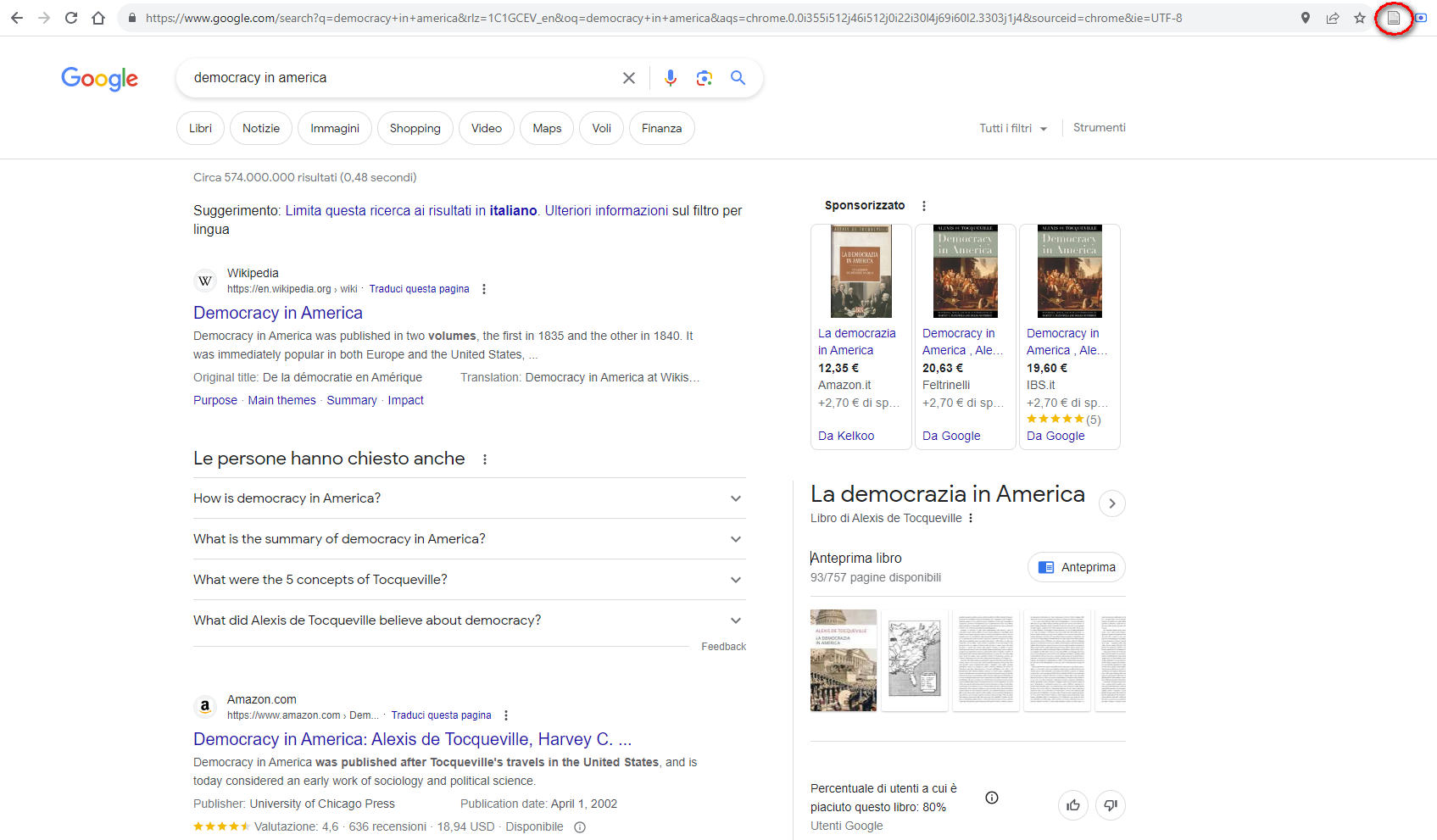
Amazon
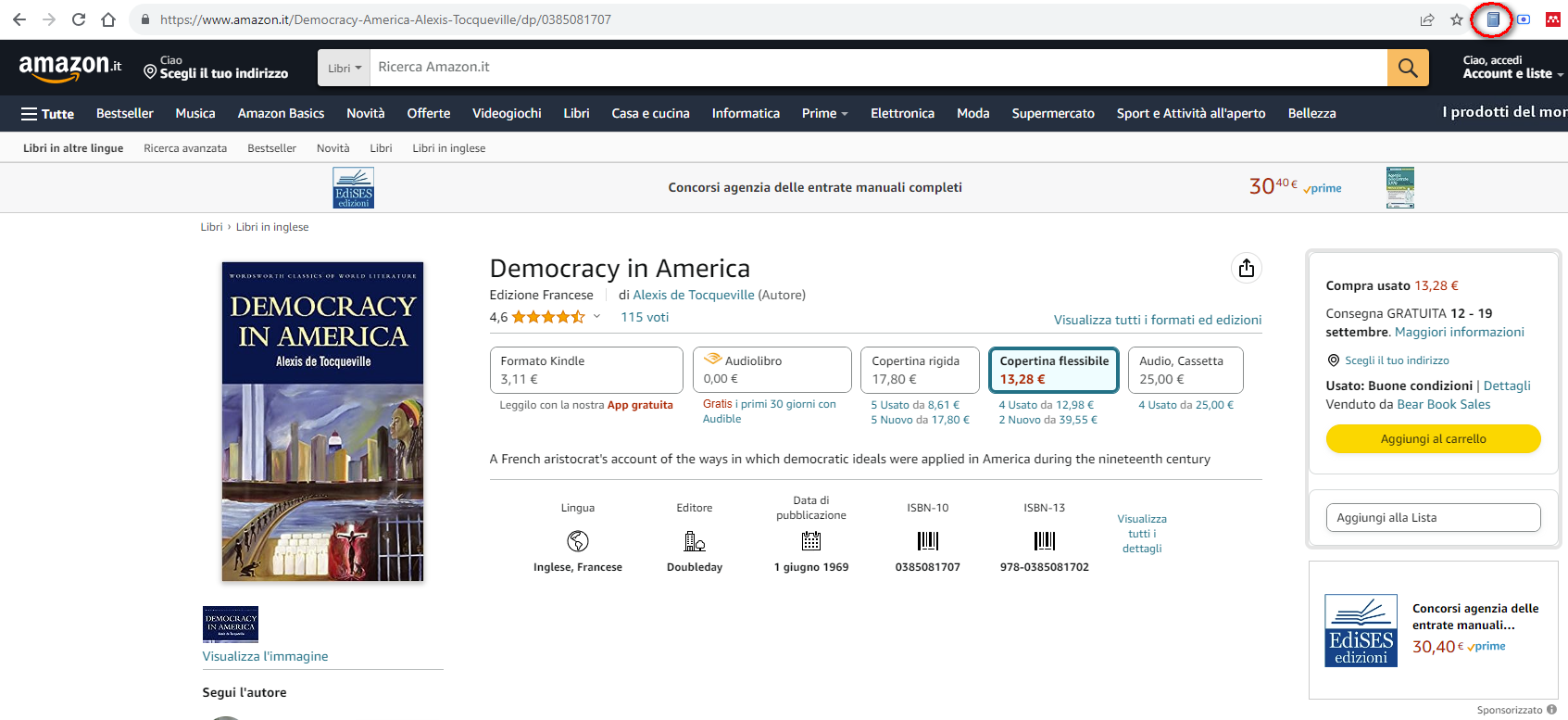
Save exports in Zotero:
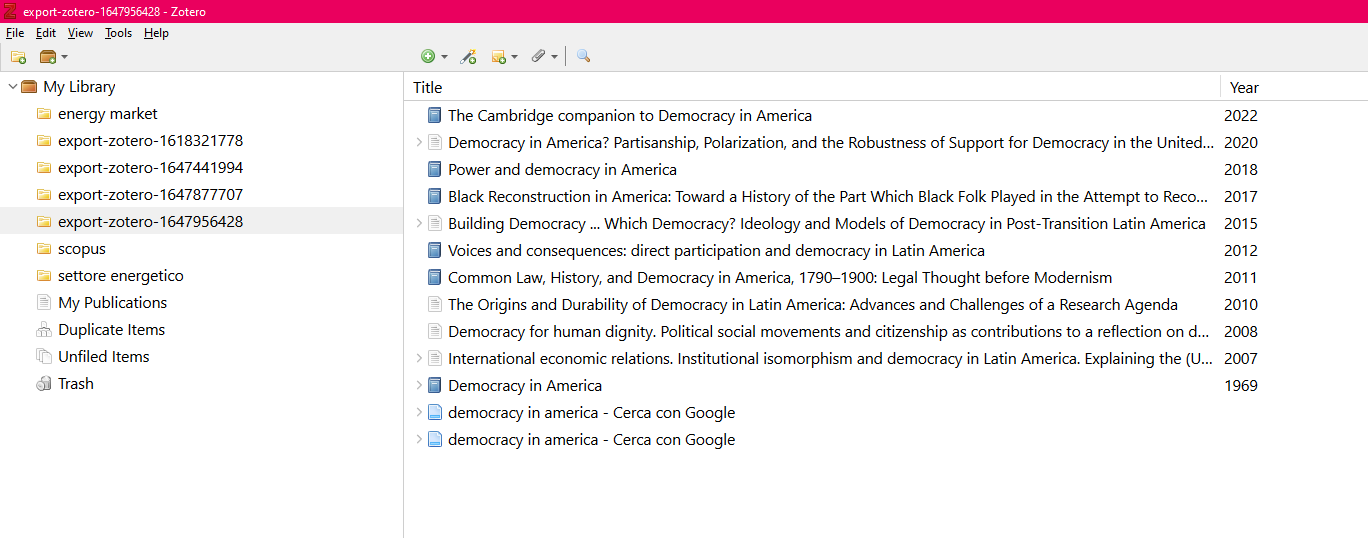
Display saved items in your library:
Citations can also be added manually in your Zotero library.
Click the green circle on the toolbar and chose the bibliographic category:
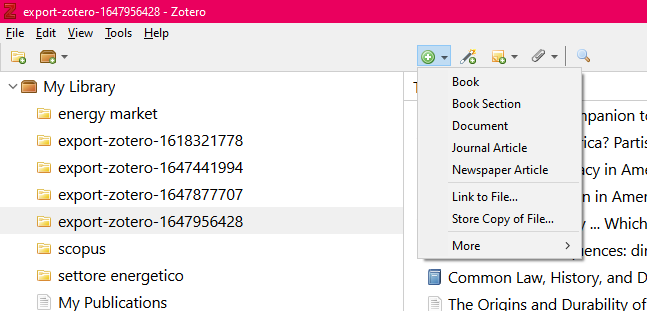
To add a PDF to your library, drag the document into Zotero from your desktop or other local folders. Zotero will retrieve the metadata automatically to complete the information. In case, click on the button:
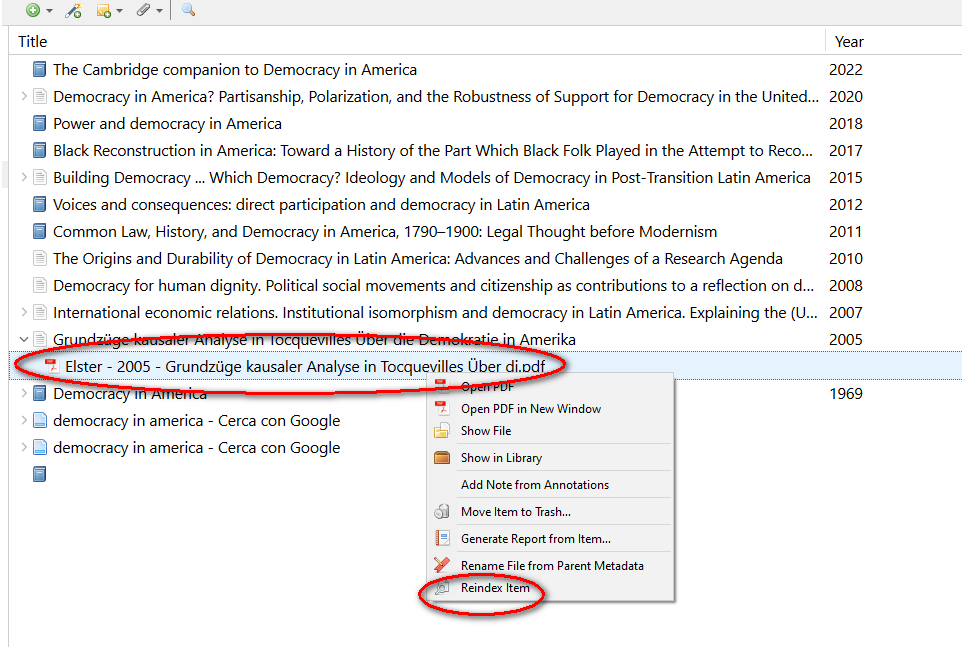
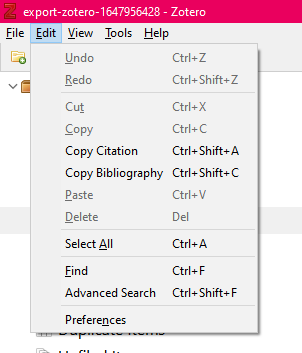
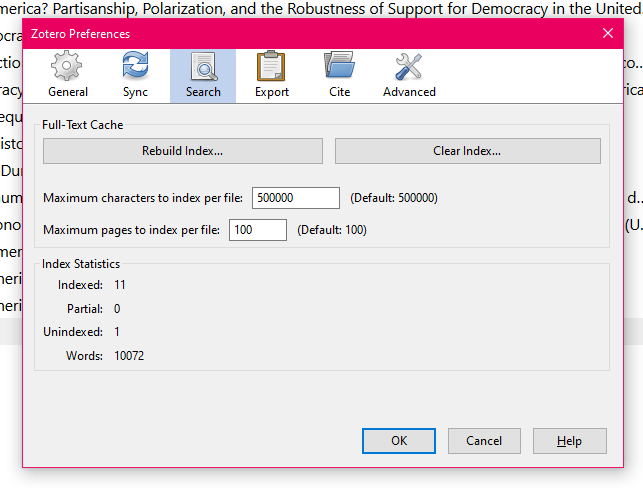
Remember to check if the search indexing is already enabled from the "Preferences" under "Edit" in the toolbar:
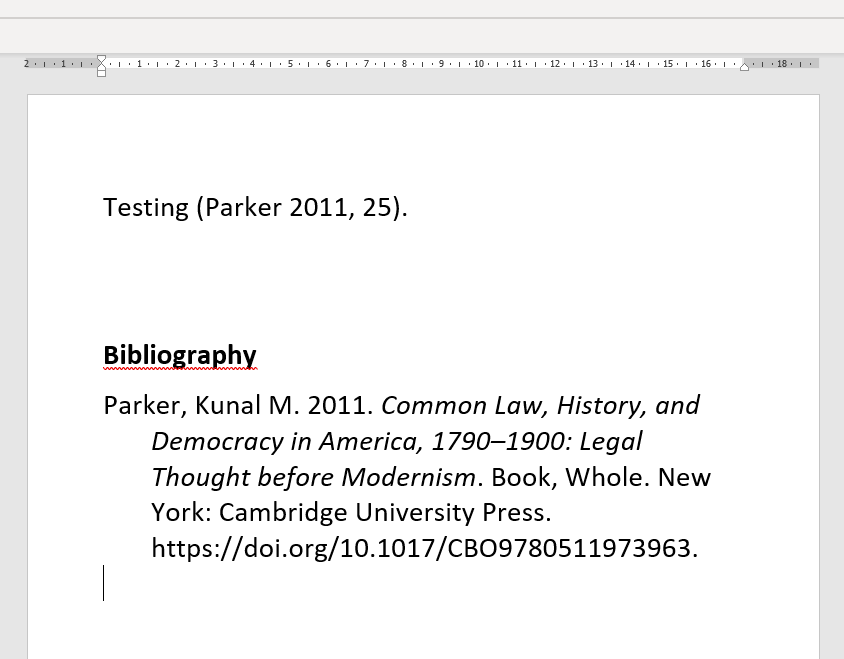
With the Zotero plugin for Microsoft Word, you can insert in-text citations while typing, and generate complete bibliographies at the end of your papers.
For further information visit the page Word processor plug-in usage.
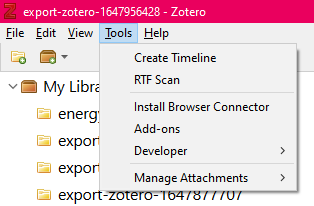
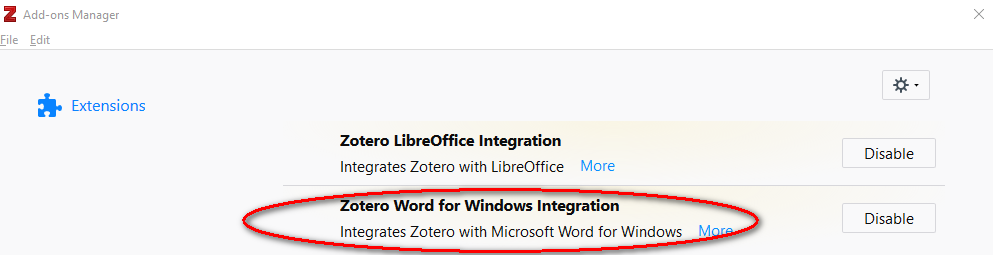
Check if the Add-on has been installed automatically in your Microsoft Word:
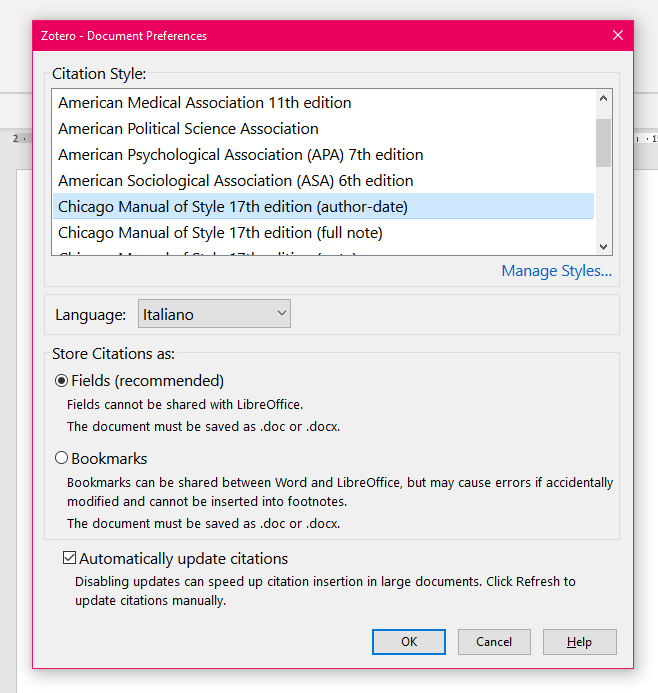
Open your document and use the buttons to add citations/bibliography according with your preferred citation style:

Insert the number of the page by clicking on the reference:
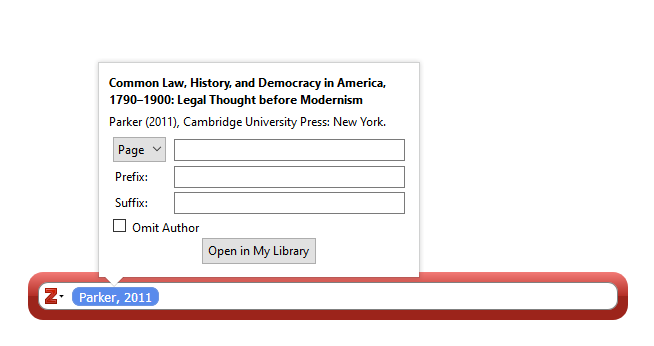
Example for in-text citations:

Example for reference list: