MLOL Digital Newsstand is accessible via OpenAthens. This guide shows you the simple steps for authentication.
Access from a computer
Open MLOL and authenticate as it follows.
Remember, you can also access the platform from the A-Z list of electronic resources.
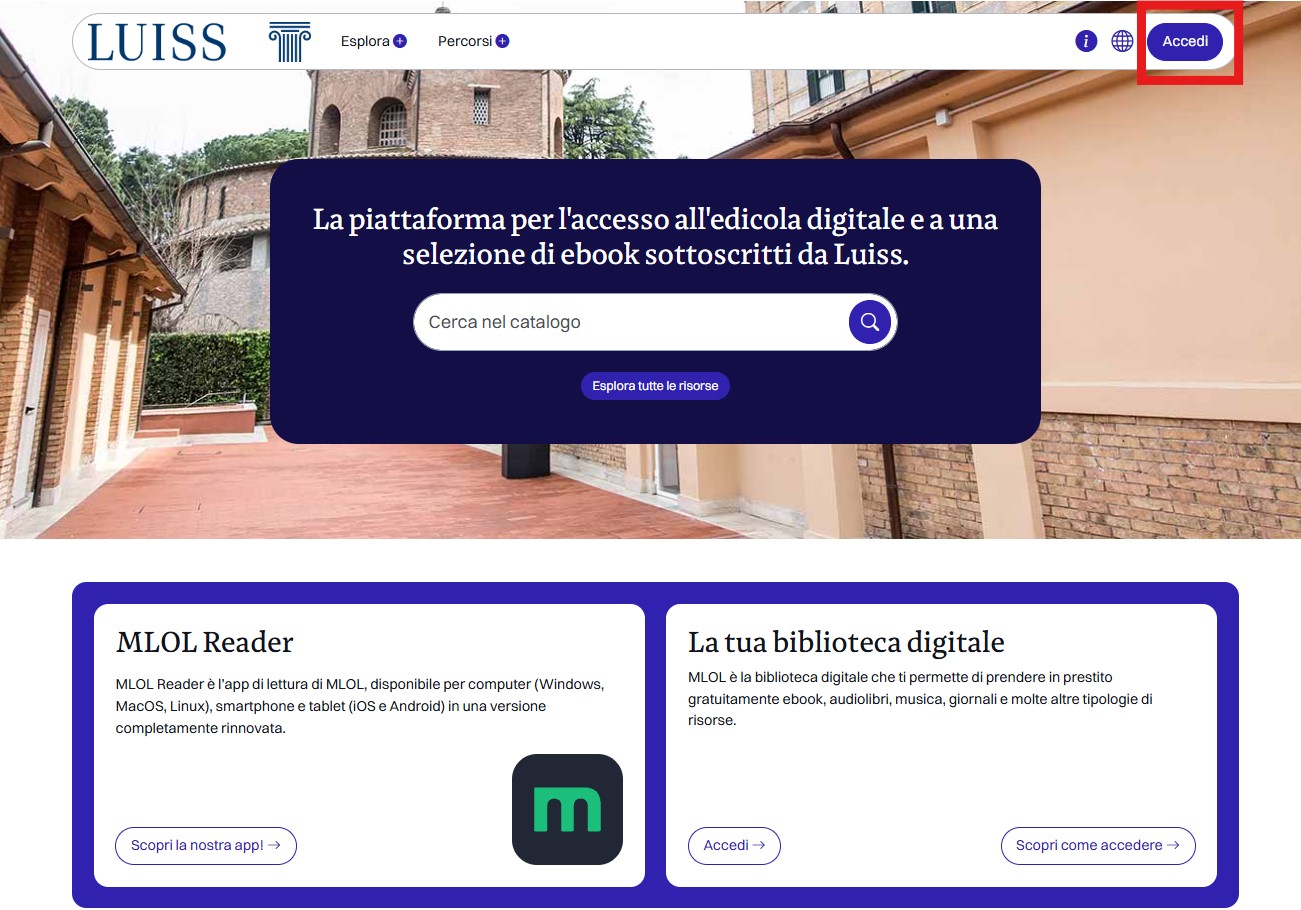
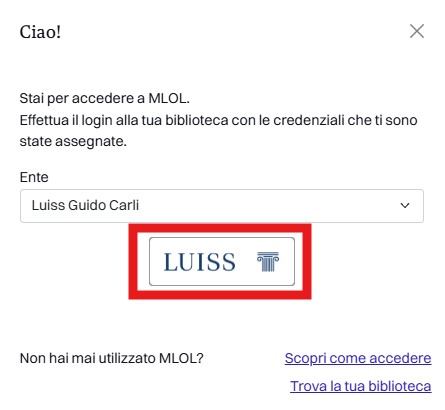
Step 1: Access and click directly on the Luiss button
Immagine
Immagine
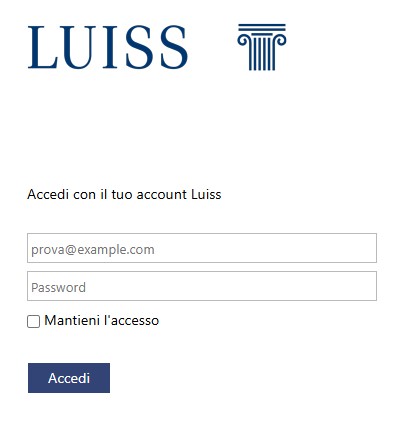
Step 2: Enter your Luiss credentials (the same ones you use for Cloudmail)
Immagine
Access the Newsstand content
Once you're logged in to MLOL, select the Newsstand type and click on the title you're interested in, or use the advanced search bar to find a specific title.
Immagine
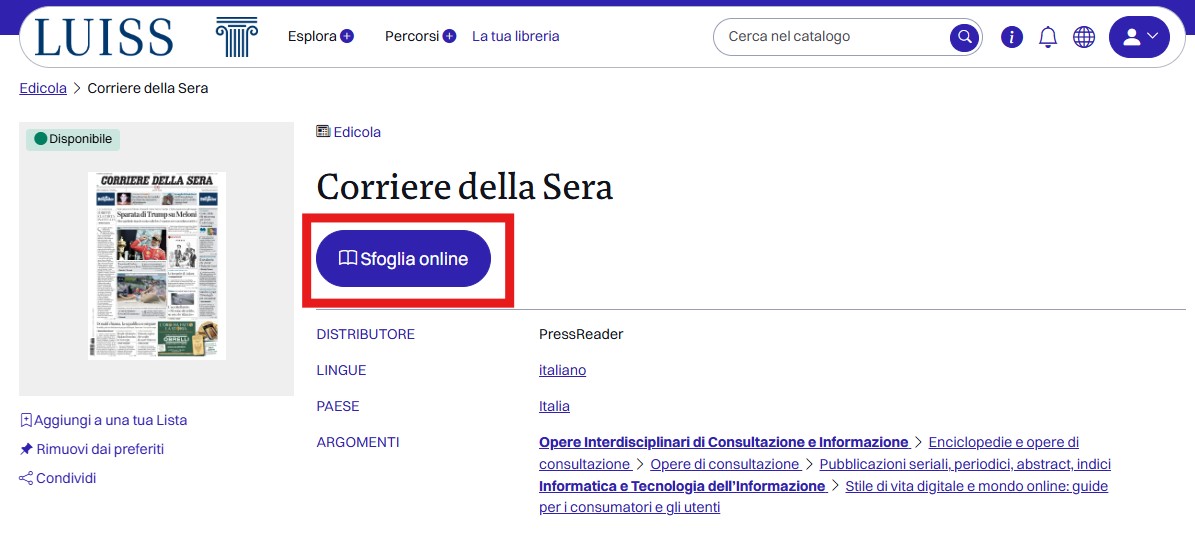
You will be redirected to PressReader, where you can browse the selected publication
Immagine
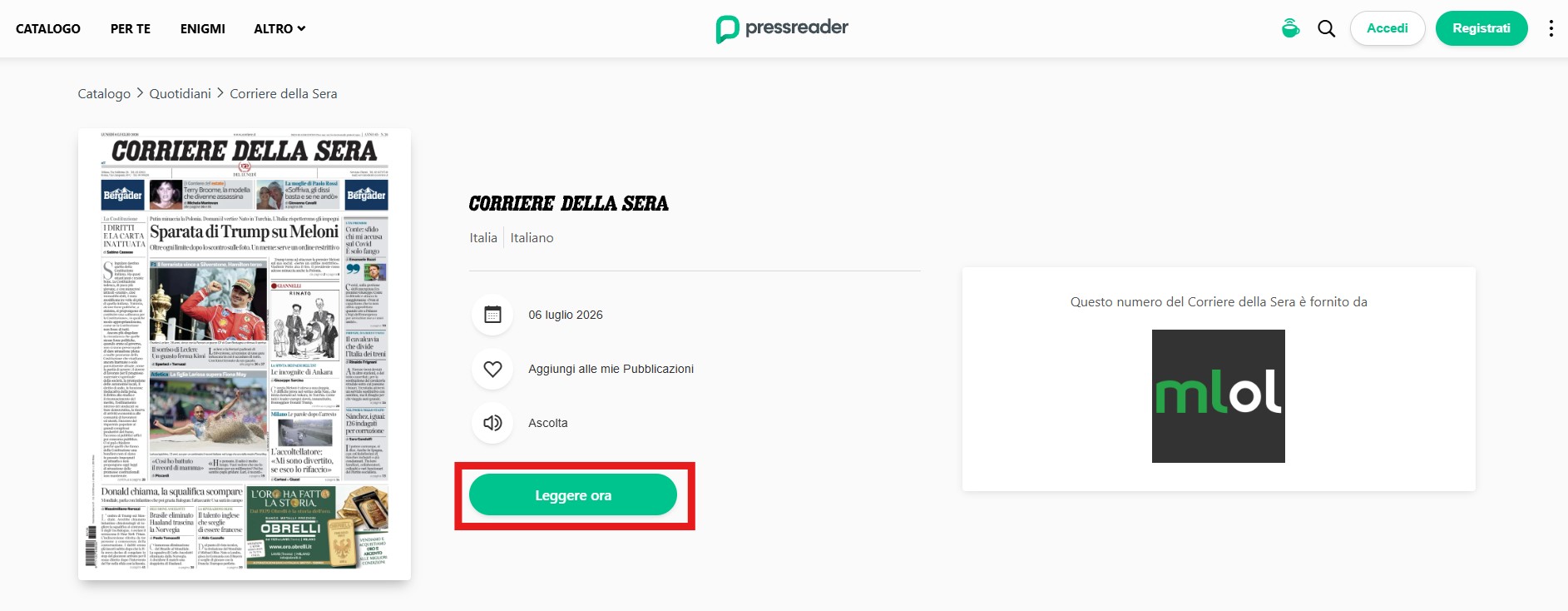
Please note: DO NOT enter your credentials directly into PressReader. Instead, browse the publications without logging in (PressReader automatically recognizes that you were redirected from MLOL).
Access from a mobile device
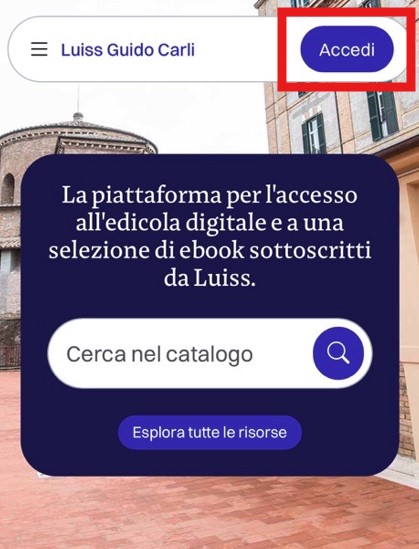
Open MLOL in your mobile device's browser and authenticate in 2 steps.
Step 1: Access and click directly on the Luiss button
Please note: You cannot access the MLOL Reader app. Even on a mobile device, access is only allowed through a browser.
Immagine
Immagine
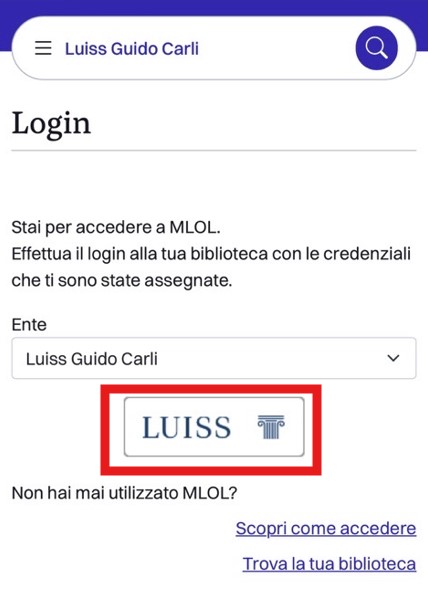
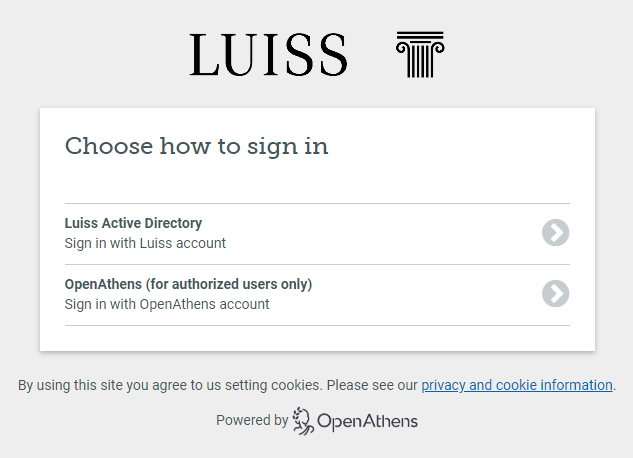
Step 2: Click on Luiss Active Directory and enter your Luiss credentials
Immagine
Access the Newsstand content
Filter the content by Newsstand Type and click on the title you're interested in, or use the magnifying glass to search for a specific title.
Immagine
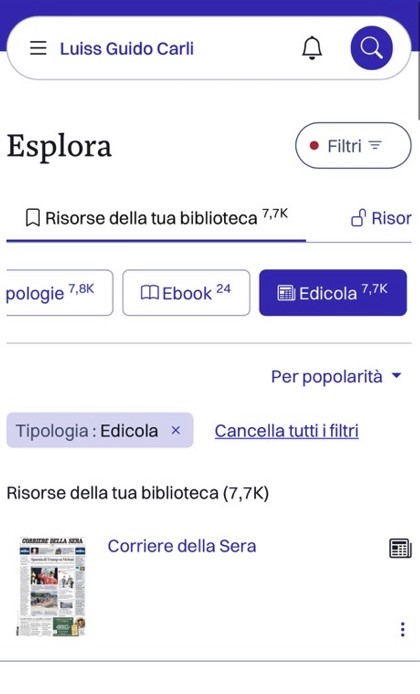
Clicking on Browse will redirect you to PressReader
Immagine
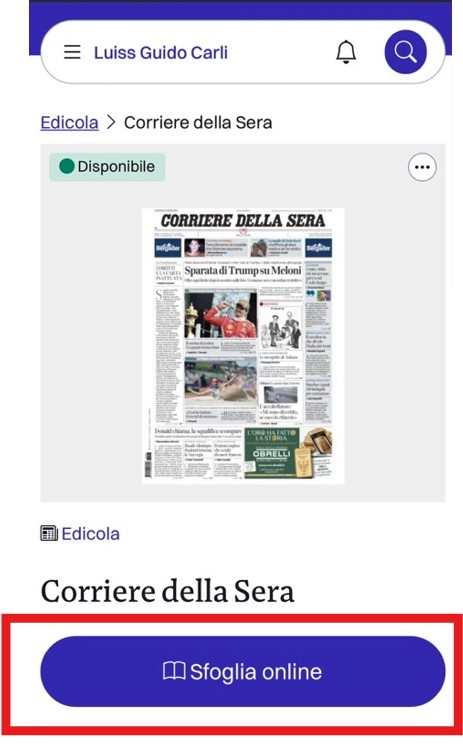
Next steps
- On the PressReader page, at the top right, click on "Access" or "Sign in" and create a new PressReader account with your Luiss username and password;
- Search for and download the PressReader app for free;
- Open PressReader and log in with your new PressReader account.
Please note: The PressReader app remembers your login for 3 days. Once this period has elapsed, you must repeat the login procedure from MLOL.